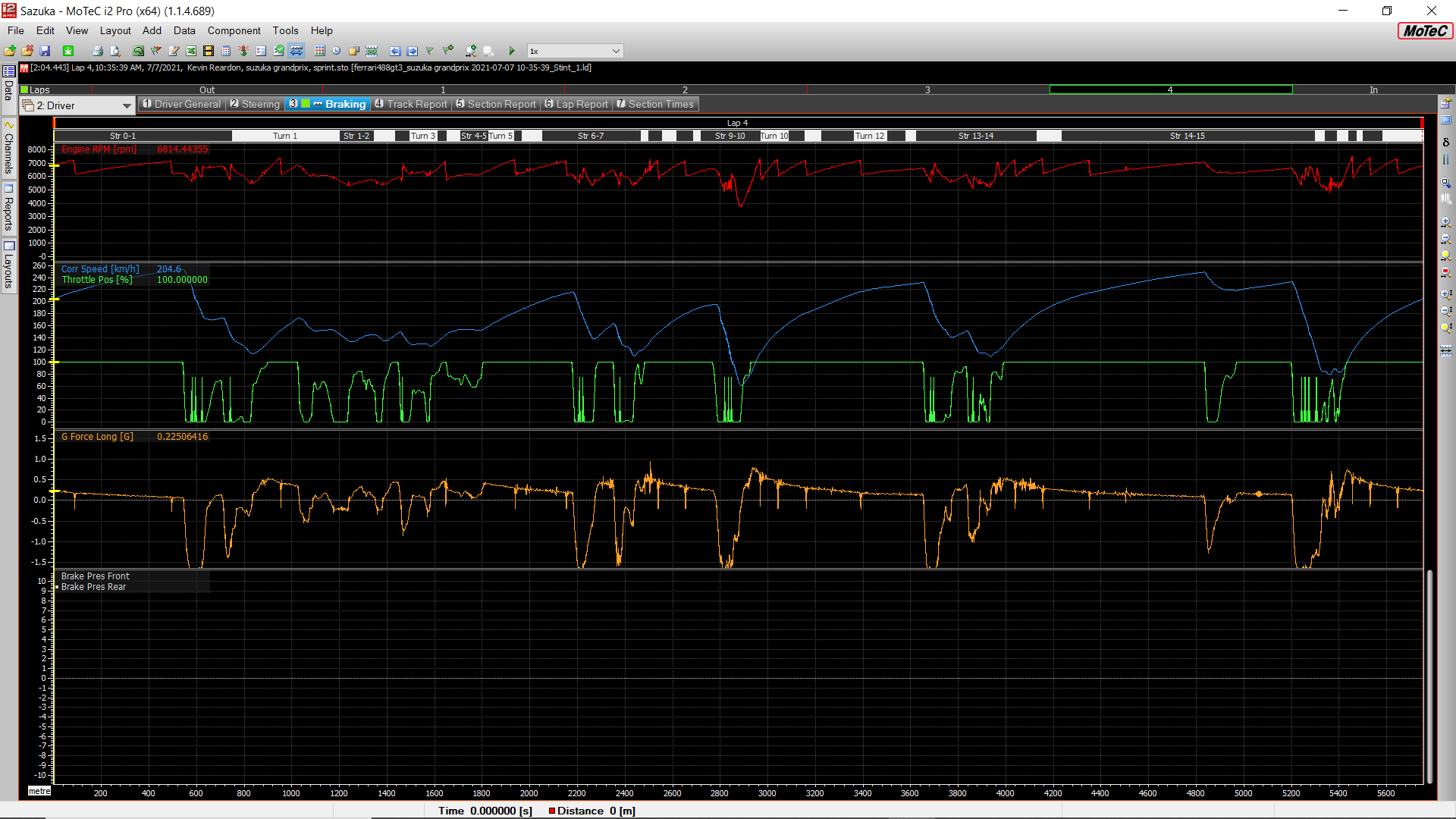
MoTeC i2 is professional-grade data analysis software used by real motorsport teams worldwide. It is also free to download and works directly with iRacing’s telemetry export. If you have ever wanted to understand exactly where you are losing time on a lap — not just feel it, but see it in data — MoTeC is where that analysis happens.
Who MoTeC i2 Is For
MoTeC is not the right first app to install as a new iRacer. The learning curve is genuine, the interface is built for engineers, and the gains it unlocks require you to already be driving with reasonable consistency. If you are currently losing time to incidents and inconsistent braking, focus on clean driving first. MoTeC will still be there when you are ready.
For intermediate to advanced drivers who are already racing cleanly and want to cut specific tenths per lap, MoTeC is one of the most powerful tools available. The ability to overlay your fastest lap’s braking trace against a slower one and see precisely where the gap comes from is something no amount of subjective feel can replicate.
How to Download and Install MoTeC i2
MoTeC i2 is available for free at motec.com. Navigate to the Downloads section and look for i2 Standard. The Standard version is free and contains everything an iRacer needs. The Pro version adds features used by professional race teams that go beyond what sim racing requires.
Download the installer, run it, and MoTeC installs to Program Files. No license key is required for the Standard version. After installation, open i2 and it launches directly to the workspace where you will load and analyze your session files.
Connecting MoTeC i2 to iRacing
iRacing exports telemetry data automatically to your Documents folder. After each session, you will find .ibt files in Documents\iRacing\telemetry. These files contain all the channel data MoTeC needs: speed, throttle, braking, steering, gear, RPM, lateral G, and more, all recorded at high frequency throughout the session.
To load a session in MoTeC, open i2, go to File, then Open, and navigate to the telemetry folder. Select the .ibt file for the session you want to analyze. MoTeC reads it and loads all the channel data into the workspace. From there, you can begin adding data traces, overlaying laps, and examining your inputs.
The Most Useful Channels to Look At
iRacing exports a large number of channels, and it is easy to get lost in the data. For most drivers, four channels cover the majority of useful analysis: brake pressure, throttle position, steering angle, and speed.
Brake pressure shows you where you are braking and how hard. Comparing your brake trace from a fast lap to a slower one reveals whether you are braking earlier, later, harder, or trailing off at a different rate. This is often where the most significant lap time differences live, particularly on unfamiliar tracks.
Throttle position shows you where you are picking up the throttle and how aggressively. A driver who gets on the throttle earlier out of corners, even if the initial application is more gentle, generally outperforms a driver who waits longer and then applies full throttle. MoTeC makes this comparison visual and specific.
Steering angle helps identify where you are turning in, whether you are using a single smooth arc or making corrections mid-corner, and how much correction you are adding under acceleration. Excess steering angle at corner exit means the car is sliding and you are losing traction.
How to Compare Laps
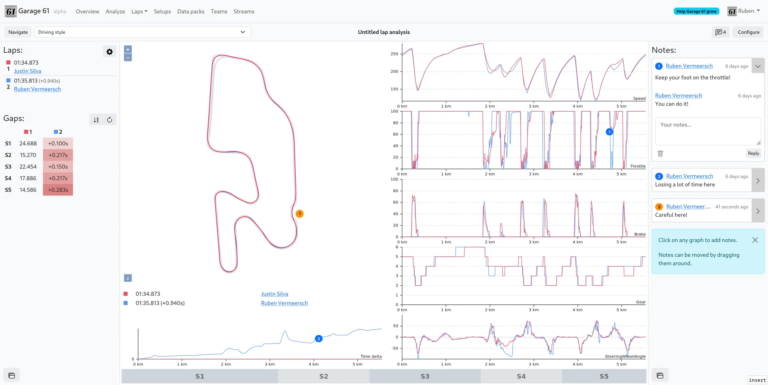
The most valuable feature in MoTeC i2 for iRacers is the lap comparison view. Load a session, then add two laps to the comparison window. MoTeC aligns them by distance and overlays the channels on the same time axis. The delta trace at the top shows where each lap gains and loses time relative to the other.
Using the delta as a guide, scroll to the sections of the lap where the biggest time differences occur. Then look at the brake and throttle traces for those sections. The cause of the delta is almost always visible in those traces: a braking point that was five metres later on the fast lap, a throttle pickup that was half a second earlier, a steering correction that scrubbed speed on the slow lap.
Common Mistakes When Reading Data
The most common mistake is trying to analyze everything at once. MoTeC returns a lot of information, and it is tempting to open every channel and try to process all of it simultaneously. A better approach is to pick one section of track, look at one or two channels, understand what happened there, and then move on.
Another common mistake is comparing a fast lap against a lap that had traffic or incidents. The resulting delta will point to sections where the slower lap lost time due to external factors, not driving technique. Always compare clean laps for useful data.
MoTeC rewards patience. The drivers who get the most out of it are those who use it consistently after every session, focus on one area to improve at a time, and verify the change in the next session’s data before moving on to the next element.