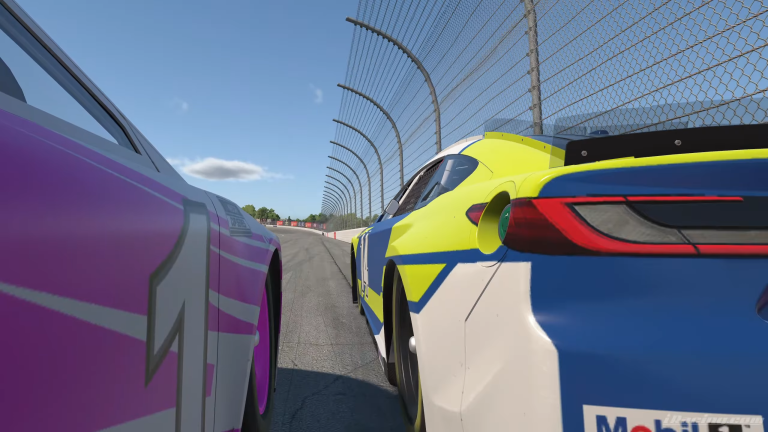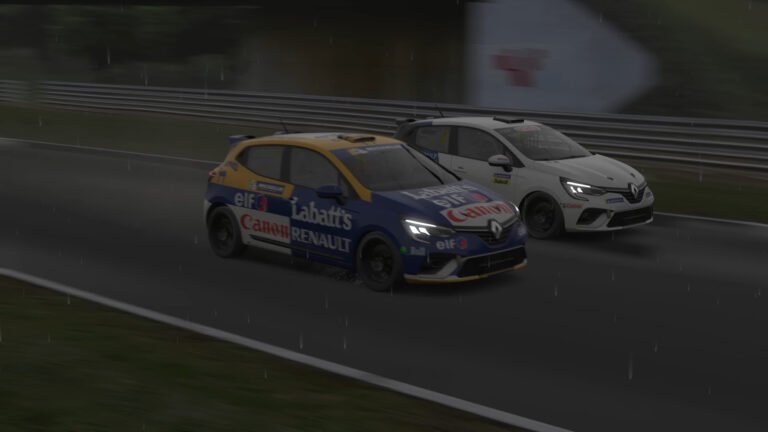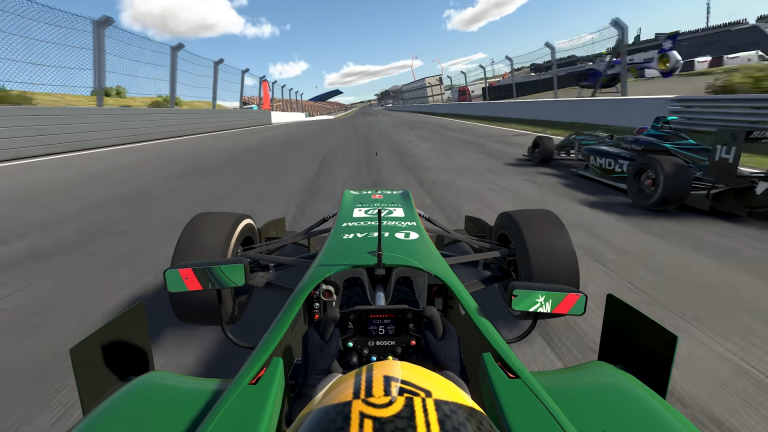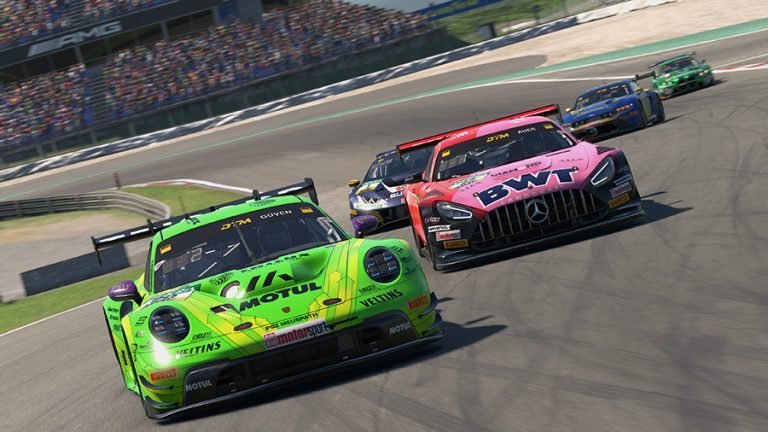
iRacing’s built-in HUD has improved significantly over the past two seasons, but third-party overlays still offer capabilities the native interface can’t match. Whether you want detailed fuel calls, a fully custom dashboard, or livery support on track, there’s a tool for it. Here’s what the best iRacing overlays in 2026 actually do and who each one is for.
iRacing’s Built-In HUD in 2026
Before covering third-party tools, the native HUD deserves a mention. The 2026 Season 1 and 2 builds added the Widget Editor, Layout Profiles, a Visual Spotter, and a Throttle and Brake Timeline. For drivers who want to keep things simple, the built-in interface is now genuinely functional. However, it still lacks spoken fuel and gap calls, deep post-session telemetry, hardware integration, and custom livery support. The tools below each fill a specific gap.
Crew Chief: Best Spotter and Race Engineer
Crew Chief is the most widely used companion app in iRacing. It delivers real-time audio calls for fuel projection, gap timing, damage reports, and tyre temperatures. Because it works through spoken audio rather than on-screen overlays, it gives you information without taking your eyes off the track. Voice commands let you ask questions mid-race and get immediate spoken answers.
This is the right first installation for nearly every iRacer. It is completely free, installs in a few minutes, and makes an immediate difference to race awareness. When you install it, disable iRacing’s built-in spotter under iRacing options to avoid doubled calls. The two apps run on the same data feed but Crew Chief is considerably more detailed. Download at thecrewchief.org.
Best for: All iRacers who want audio race engineering and fuel calls.
SimHub: Best Custom Dashboards and Hardware Integration
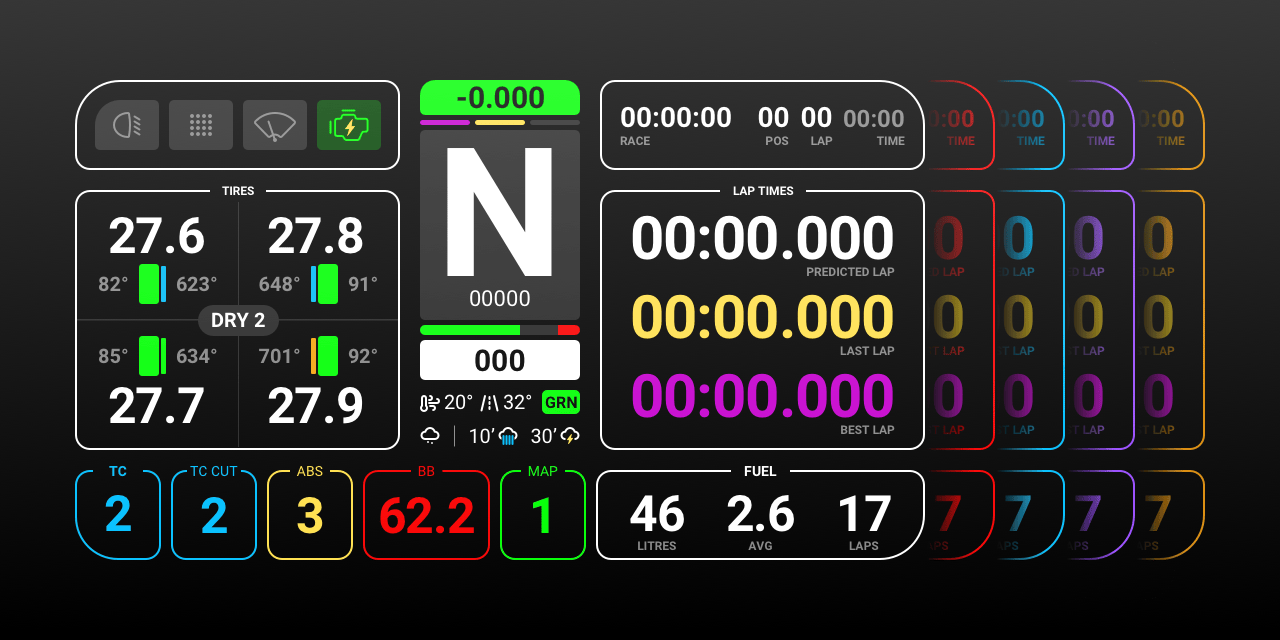
SimHub is the most versatile overlay tool available for iRacing. Its core use is dashboard building: you create custom on-screen HUD layouts with drag-and-drop tools, then display them in-game or on a separate screen, phone, or tablet. The community library includes thousands of pre-built dashboard designs that you can download and apply without building from scratch.
Beyond overlays, SimHub also drives motion platforms, wind simulators, bass shakers, and haptic feedback hardware. If you have any accessories beyond a wheel and pedals, SimHub is almost certainly the software that connects them to iRacing’s data output. The core version is free, with a small optional payment for additional hardware features. Download at simhubdash.com.
Best for: Drivers who want custom HUD layouts, multiple screens, or hardware integration.
Trading Paints: Best for Liveries
Trading Paints handles custom car liveries in iRacing. Without it, all cars display default iRacing paint schemes. With it installed, you see other drivers’ custom liveries in real time, and they see yours. The free tier lets you download and view community liveries. The premium tier adds the ability to upload and display your own custom paint across all your cars.
For league racing in particular, Trading Paints is nearly universal. Even outside leagues, the visual variety it adds to a race grid improves immersion considerably. It runs in the background and requires no ongoing configuration after initial setup. Visit tradingpaints.com.
Best for: Any iRacer who wants custom liveries on the grid.
MoTeC i2: Best Post-Session Data Analysis
MoTeC i2 is professional-grade data analysis software used in real motorsport. It connects to iRacing’s telemetry export and lets you analyze your inputs, braking traces, cornering forces, and lap deltas in detail after a session. This is not a live race overlay. Instead, you load your session data afterward and compare laps to find where time is being lost.
The learning curve is steeper than any other tool on this list. However, for drivers who are already racing cleanly and want to find specific tenths through data, the lap comparison and channel overlay tools in MoTeC are genuinely powerful. You can overlay your braking trace from a fast lap against a slower one and see exactly where the difference is. Free to download at motec.com.
Best for: Intermediate and advanced drivers doing post-session lap time analysis.
Which Overlays Should You Install First?
Start with Crew Chief. It is free, installs quickly, and the audio calls change how you manage fuel and traffic from the very first race you use it. After that, add SimHub if you want a custom on-screen dashboard or you have hardware accessories. Add Trading Paints if you race in a league or simply want a more visually varied grid. MoTeC comes later, once you are racing cleanly and specifically looking to cut lap times through data analysis.
Running Crew Chief and SimHub together is the most common combination. They serve different purposes and don’t conflict with each other. Most iRacers who use both run Crew Chief for audio calls and SimHub for visual dashboard elements on a secondary screen.