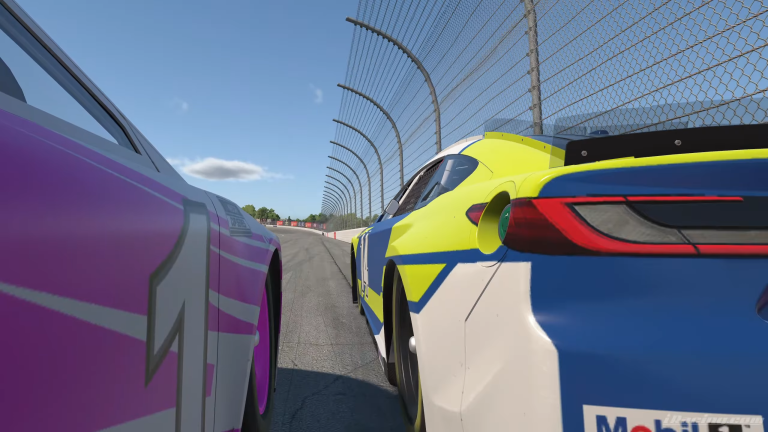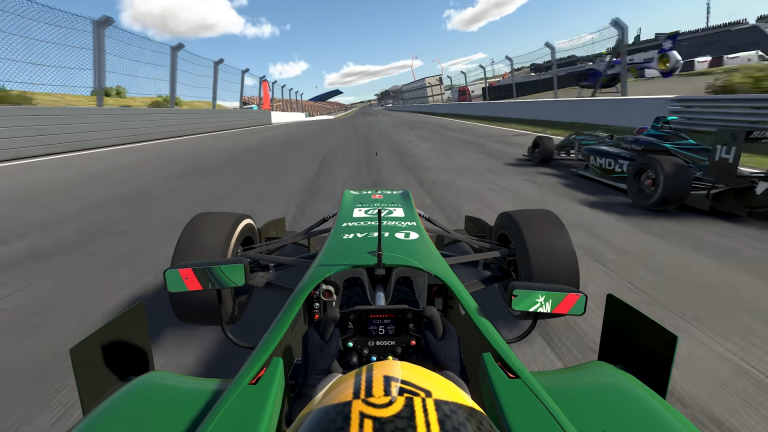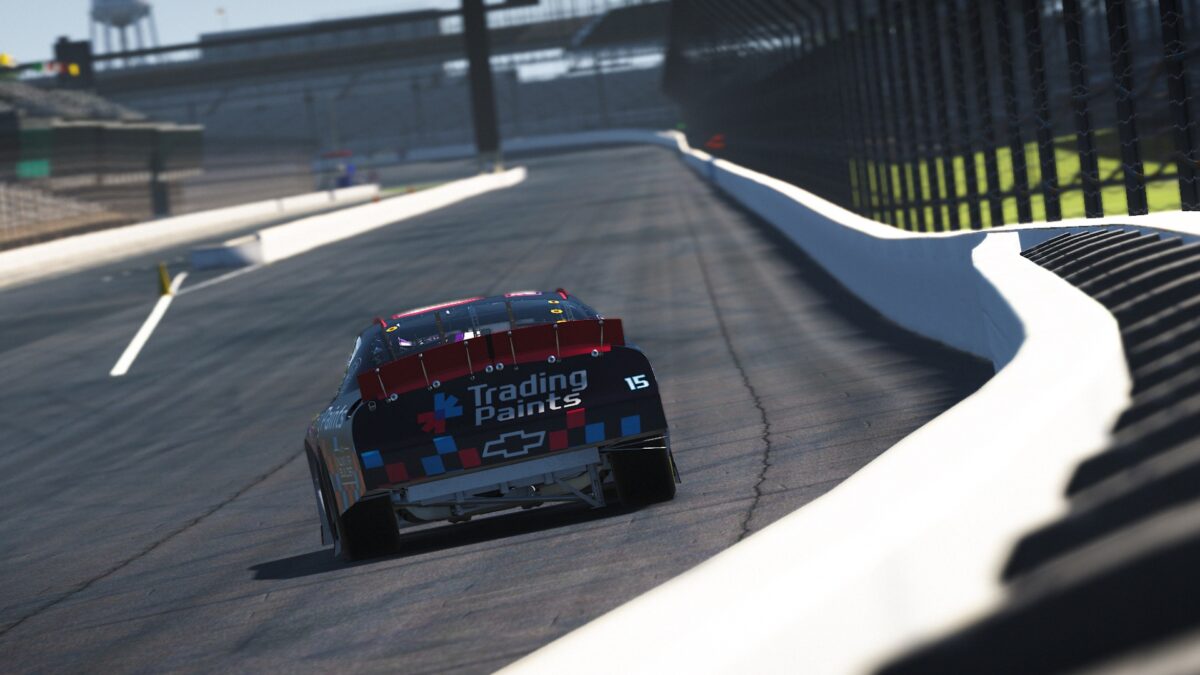
Trading Paints is one of the most popular companion apps in iRacing, and it does something the game cannot do on its own: show custom car liveries on the grid in real time. Without it, every car on track displays a default iRacing paint scheme. With it installed, you see the actual custom liveries that other drivers are running, and they see yours. This guide covers how to set it up and get the most out of it.
Also See
What Trading Paints Does
iRacing has a built-in paint system, but it only shows your own custom livery to yourself. Other drivers in the session see your car with the default iRacing scheme unless they also have Trading Paints installed. Trading Paints solves this by running a background app that loads custom livery files from its servers when you join a session. When the app is active, everyone with it installed sees everyone else’s custom paints in real time.
The app works for all iRacing cars and updates automatically when you join each session. Because it runs in the background, there’s nothing to configure before each race. You install it once and it handles everything from that point.
Free vs Premium
Trading Paints has a free tier and a Premium tier. The free tier lets you see other drivers’ custom liveries in full and download community liveries to apply to your own car. This is the core experience and it costs nothing.
The Premium tier, which costs a small annual fee, adds the ability to upload your own custom livery designs and have them display to other drivers in real time. It also gives you access to a livery management dashboard where you can assign specific paints to specific cars and keep your designs organized. For casual drivers, the free tier is sufficient. For league racers or anyone who wants to run and show a custom livery, Premium is the relevant upgrade.
How to Install Trading Paints
Go to tradingpaints.com and create a free account. Download the desktop app from the Downloads section of the site. The installer places the app in your Applications folder and adds a system tray icon so it runs in the background when Windows starts.
After installing, open the app and log in with your Trading Paints account. The app will ask you to connect your iRacing account by entering your iRacing customer ID, which you can find in your iRacing profile settings. Once connected, the app links your iRacing identity to your Trading Paints account and activates livery loading for your sessions.
How to Apply a Community Livery
With the free tier you can browse and download any community livery shared publicly on the site. To find one, go to tradingpaints.com and use the search to browse by car model. You will find a large library of designs for every popular iRacing car.
When you find a livery you want to use, click Apply or Download. The Trading Paints app places the livery file in the correct iRacing folder automatically. The next time you load iRacing and open the car in the paint section, your selected livery appears. Because Trading Paints manages the file placement, you don’t need to navigate to any iRacing directories manually.
How to Upload Your Own Custom Paint
Uploading your own paint requires the Premium tier. Once subscribed, you can create a livery in iRacing’s paint editor or in a design application that exports the correct template files. iRacing provides Photoshop and GIMP templates for every car on its website, and the community has produced many ready-to-use template files as well.
After creating your livery, upload the paint files through your Trading Paints account dashboard. The site accepts the standard iRacing paint file formats and hosts them on its servers. Once uploaded, other drivers with Trading Paints installed will see your custom livery when they share a session with you. There’s no extra step required on your end after the upload is complete.
How It Works in Multiplayer
In a live iRacing session, Trading Paints downloads livery files for each driver who has a custom paint on file. This happens in the background while you load into the session. On a typical modern internet connection, the livery loading adds very little time to your session join process.
Only drivers who have Trading Paints installed and active will see custom liveries. Drivers without the app installed see the default iRacing schemes for everyone. Because the app is widely used in the iRacing community, however, most drivers you share a session with will have it installed.
Tips for Getting the Most Out of Trading Paints
If you race in an organized league, check whether the league has specific livery requirements or templates. Many leagues run team colors or sponsor liveries that members are expected to display. In those cases, the league organizer will usually provide the livery file or a link to download it from Trading Paints directly.
For public racing, browse the community library on the Trading Paints site rather than using the default iRacing paint. The library covers every car in iRacing with thousands of options, and finding a clean livery you like takes only a few minutes. It is a small change that makes a meaningful difference to how the game looks during a race.