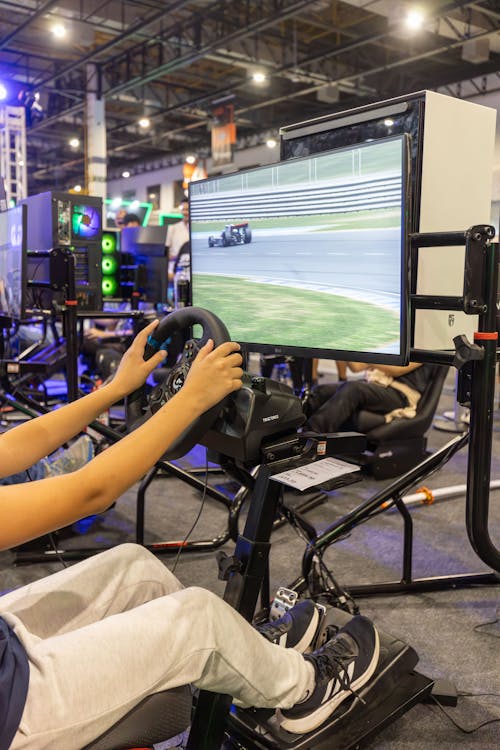
SimHub is the most versatile companion app available for iRacing. At its core it builds custom on-screen dashboards and HUD layouts, but it also connects to a wide range of sim racing hardware — from haptic bass shakers to wind simulators to motion platforms. This guide covers everything you need to get SimHub running with iRacing, from initial setup through creating your first dashboard overlay.
Also See
What SimHub Does
SimHub has two main uses for most iRacers. The first is custom dashboard overlays: you design or download a HUD layout and display it in-game or on a secondary screen, phone, or tablet connected to your PC. The second is hardware integration: SimHub outputs game data to physical accessories like bass shakers for road and kerb feel, wind fans that react to car speed, and LED indicator lights on button boxes or steering wheels.
The app is free for core features. A small optional donation unlocks premium hardware support for motion and some additional plugin features. For the vast majority of users who want dashboards and basic hardware integration, the free version covers everything.
How to Download and Install SimHub
SimHub is available at simhubdash.com. Go to the download section and grab the latest installer. Run it and SimHub installs to Program Files with no special configuration required. When you open SimHub for the first time, a setup wizard asks which features you want to enable. Select iRacing as your primary sim and toggle on the features relevant to your setup.
Connecting SimHub to iRacing
SimHub reads from iRacing’s shared memory data feed automatically. Open iRacing, open SimHub, and the connection indicator in SimHub’s status bar turns green when a session is active. No iRacing configuration changes are needed on your end. The connection happens as long as both applications are running.
One setting worth checking is the Update Rate in SimHub’s general settings. The default is 60Hz, which is appropriate for most setups. If you notice performance issues while SimHub is running, lowering this to 30Hz reduces the CPU load without meaningfully affecting the displayed data.
Setting Up Your First Dashboard Overlay
SimHub comes with several built-in dashboard designs, and the community has produced thousands more that are available through the SimHub Dash Studio community section. To get started, go to the Dash section in the SimHub sidebar. Here you can browse built-in layouts or download community dashboards directly from within the app.
To display a dashboard in iRacing, select the layout you want and click the Show in-game button. SimHub will overlay it on your iRacing screen. You can adjust the position, scale, and opacity of the overlay without closing the game. Most drivers position the dashboard near the bottom or side of the screen where it doesn’t obscure the racing line.
If you want to display the dashboard on a phone or tablet instead of in-game, use the SimHub Remote option. This runs a local web server that your secondary device connects to over your home network. The dashboard then displays on the external screen without taking up any space in the game view.
Best Free Dashboard Downloads
The SimHub community library is large and the quality of available dashboards is high. A few categories worth looking for: MX-5 style binnacle dashboards that replicate the look of real car instruments, minimal HUD strips that show only gap time and fuel, and multi-panel racing engineer displays that show tyre temperatures, fuel remaining, and lap delta all in one layout.
To download a community dashboard, go to the Dash section in SimHub, click Community, and browse or search by sim and display type. Select a dashboard, preview it, and click Install. The download and installation happen within the app and the dashboard appears in your layout list immediately.
Motion and Haptics Setup
If you have a bass shaker, motion platform, or wind simulator, SimHub is almost certainly the software that drives it. The hardware integration is handled through the ShakeIt plugin for bass shakers and the Haptic feedback section for other devices. Each section has sliders and effect settings that let you tune the intensity and type of effects for braking, kerb strikes, gear shifts, and engine vibration.
Getting these effects set up correctly is worth the time. A well-calibrated bass shaker dramatically improves the feel of iRacing by adding a physical feedback layer to kerb strikes, ABS events, and engine RPM. Start with the default presets, run a few laps, then adjust the intensities to match what feels right for your setup.
SimHub and Crew Chief Together
SimHub and Crew Chief serve different purposes and run alongside each other without any conflict. Crew Chief handles spoken audio calls for fuel, gaps, and damage. SimHub handles visual dashboard elements and hardware outputs. Most serious iRacers use both simultaneously. There is no performance penalty to running them together, and the combination covers most of what a real race engineer would communicate to a driver during a session.