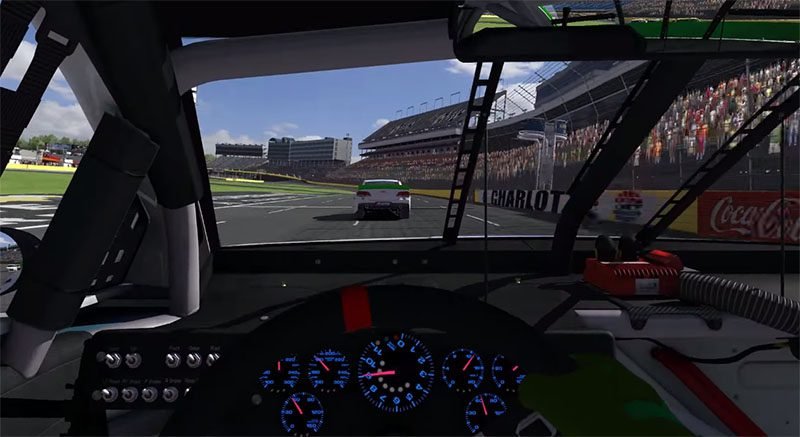
What You Need to Stream iRacing on Twitch
Learning how to stream iRacing Twitch OBS style is easier than you might think, and it does not require expensive equipment to get started. If your PC already runs iRacing smoothly, you likely have enough power to stream at the same time. The key is configuring everything correctly so your stream looks great without killing your frame rate.
Before you go live for the first time, you need a few things in place. Obviously, you need an iRacing subscription and a Twitch account. You also need OBS Studio (Open Broadcaster Software), which is free and open-source streaming software that handles the heavy lifting of encoding and broadcasting your gameplay. Additionally, a decent microphone makes a massive difference in viewer retention because nobody wants to watch a silent stream or one with terrible audio quality.
On the hardware side, a modern mid-range CPU handles both iRacing and encoding without issues. If you have a recent NVIDIA GPU, you can offload encoding to the hardware encoder (NVENC), which barely impacts your gaming performance. AMD users have a similar option with AMF encoding. Either approach lets you stream while maintaining the smooth frame rates that sim racing demands.
Installing and Configuring OBS Studio
Download OBS Studio from the official website and run through the initial setup wizard. The auto-configuration tool tests your system and recommends baseline settings, which provides a solid starting point. However, you will want to fine-tune several settings specifically for iRacing streaming.
Under Settings, navigate to the Output tab. Set your encoder to NVENC (if using NVIDIA) or x264 (for CPU encoding). For Twitch streaming, a bitrate between 4,500 and 6,000 kbps works well for 1080p at 30 or 60 frames per second. Higher bitrates look better but require faster upload speeds. If your internet connection supports it, target 6,000 kbps for the sharpest image quality.
In the Video tab, set your base resolution to match your monitor and your output resolution to 1920×1080. Downscaling from a higher resolution like 1440p or 4K to 1080p actually produces a sharper stream than capturing at native 1080p because the downscale filter smooths out artifacts. Set your FPS to 30 or 60 depending on your system’s capabilities.
Capturing iRacing: Game Capture vs Display Capture
OBS offers two main ways to capture your iRacing gameplay: Game Capture and Display Capture. Each method has trade-offs that matter for sim racing specifically.
Game Capture hooks directly into the iRacing application and captures the rendered frames. This method is more efficient because it does not need to capture the entire screen. To set it up, add a Game Capture source in OBS and select iRacing from the application list. If iRacing does not appear, try setting the mode to “Capture specific window” and selecting the iRacing window manually.
Display Capture grabs everything on your monitor, including any overlays, desktop notifications, and other applications. This method is simpler to configure and guarantees that whatever you see on screen appears on stream. However, it uses more system resources than Game Capture and can capture things you might not want viewers to see, like personal notifications or other open applications.
For most iRacing streamers, Game Capture is the better choice. It captures only the sim, leaving you free to manage OBS, read chat, and use other tools on a second monitor without those appearing on stream. If you run iRacing in borderless windowed mode and want overlays from tools like SimHub to appear on stream, Display Capture or a combination of sources works better.
Setting Up Your OBS Scenes for iRacing
Scenes in OBS are layouts that define what your stream shows at any given time. A well-organized scene setup makes your broadcasts look professional and transitions between different content types smooth and seamless.
Create a main racing scene that includes your Game Capture source, a webcam source (if you use one), and any overlay elements. Position the webcam feed in a corner where it does not obstruct important race information like the relative timing display or mirror views. Many sim racing streamers place the webcam in the bottom left or bottom right corner at a small size.
Consider creating additional scenes for different situations. A “Starting Soon” scene with a countdown graphic tells viewers the stream is about to begin. A “Be Right Back” scene covers breaks between sessions. An intermission scene with your race results or standings keeps viewers engaged during downtime between races. Switching between scenes with hotkeys or a Stream Deck makes transitions instant and professional.
Audio configuration deserves careful attention as well. Add your microphone as an audio source and set up noise suppression and noise gate filters to eliminate background sounds. iRacing game audio should come through the desktop audio source. Balance these levels so your voice sits clearly above the car sounds without drowning out the engine notes that add atmosphere to the stream.
Optimizing Stream Settings for Performance
iRacing is a CPU-intensive simulation, and streaming adds additional load to your system. Optimizing your settings prevents frame drops that ruin both your racing performance and your stream quality.
If you experience performance issues, start by switching to hardware encoding (NVENC or AMF). This shifts the encoding workload to your GPU’s dedicated encoder, freeing up CPU resources for iRacing’s physics calculations. The quality difference between hardware and software encoding has become negligible with modern GPUs, so there is no reason to sacrifice performance for marginally better compression.
Inside iRacing, lower graphical settings that are not visible on a 1080p stream. Features like maximum draw distance, high-detail crowds, and extreme shadow quality consume resources without meaningfully improving the viewer experience at stream resolution. Focus your graphics budget on car models, track surface detail, and lighting quality because those are what viewers actually notice.
Additionally, close unnecessary background applications before going live. Discord video, Chrome tabs, and other resource-hungry programs compete with both iRacing and OBS for system resources. A clean system with minimal background processes gives you the best chance of maintaining smooth performance throughout a full race broadcast.
Adding Overlays to Your iRacing Stream
Overlays transform a basic screen capture into a polished broadcast. Tools like SimHub integrate with OBS to display real-time telemetry data, standings, and input visualizations directly on your stream. These overlays give viewers additional information that makes the broadcast more engaging and easier to follow.
SimHub overlays connect to OBS through browser sources. You add a Browser Source in OBS, point it to the SimHub overlay URL (typically a local address), and position it on your scene. The overlay updates in real time as you drive, showing data like lap times, tire temperatures, fuel levels, and position in the field.
For a deeper look at overlay options and setup, check out our guide on the best OBS overlays for iRacing streams. The right combination of overlays adds professionalism to your broadcast without cluttering the screen or distracting from the racing action.
Going Live: Your First iRacing Stream
Before starting your first broadcast, run a test stream to check everything works correctly. OBS lets you record locally without going live, which is perfect for testing your scene layout, audio levels, and performance impact. Review the recording and adjust anything that looks or sounds off.
When you are ready to go live, connect OBS to your Twitch account through the Stream settings panel. Copy your stream key from the Twitch dashboard and paste it into OBS. Hit “Start Streaming” and confirm the connection is active by checking your Twitch channel in a browser.
During your first few streams, keep things simple. Focus on racing well and talking naturally about what you are doing on track. Explain your thought process during overtakes, describe your strategy, and react to incidents as they happen. Viewers connect with authentic commentary much more than produced performances. As you get comfortable, gradually add more production elements like custom overlays, scene transitions, and viewer interaction through chat.
Consistency matters more than production quality when building an audience. Streaming at regular times helps viewers know when to find you. Even two or three scheduled streams per week builds a foundation that casual viewers can latch onto. The iRacing community on Twitch is welcoming and supportive, so engage with other streamers, raid channels after your stream ends, and participate in the community to grow your presence organically.