Why Overlays Matter for iRacing Streams
Adding iRacing stream overlays OBS to your broadcast instantly separates your channel from generic screen captures. Overlays provide real-time race data, professional graphics, and viewer-friendly information that transforms a basic stream into an engaging broadcast. They give your audience context about what is happening on track, from gap times to fuel strategy, without you needing to explain every detail verbally.
In 2026, the ecosystem of overlay tools for iRacing has matured considerably. Whether you want simple telemetry displays or full broadcast-quality graphics packages, free and paid options exist for every level of production. This guide covers the best overlay tools available, how to integrate them with OBS, and which combinations work best for different types of iRacing content.
SimHub: The Foundation of iRacing Stream Overlays
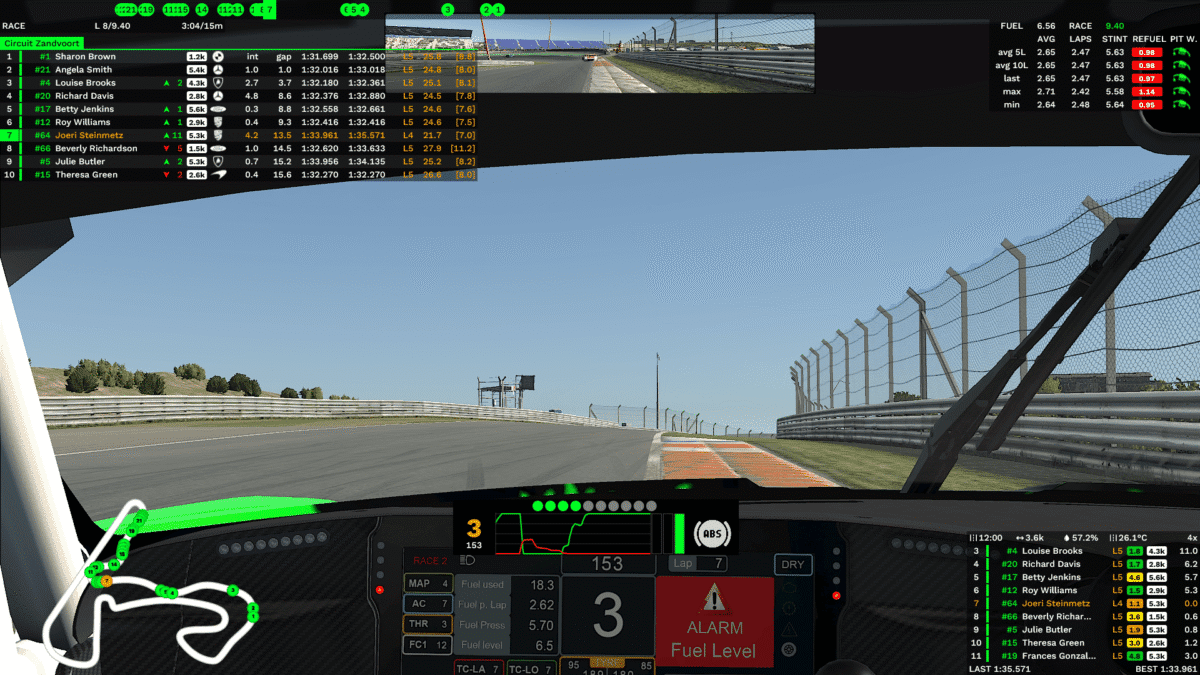
SimHub is the most widely used overlay tool in the iRacing streaming community, and for good reason. This free application connects to iRacing’s telemetry output and generates customizable overlays that display virtually any data point the sim provides. From lap times and tire temperatures to fuel calculations and relative standings, SimHub handles it all.
SimHub works with OBS through browser sources. The application runs a local web server that hosts your overlay, and you add a Browser Source in OBS pointing to that local address. The overlay then updates in real time as you drive, with smooth animations and responsive data. This approach is lightweight and does not require window capture or complex configurations.
The community around SimHub has produced hundreds of overlay designs that you can download and install for free. These range from minimalist telemetry bars to comprehensive race dashboards with multiple data panels. Installing a new overlay typically involves dropping a folder into your SimHub directory and selecting it from the overlay menu. The variety available means you can find a style that matches your stream’s visual identity without designing anything from scratch.
Best Free SimHub Overlays for iRacing
Benofficial2 Overlay Collection
The benofficial2 overlay pack is one of the most popular free collections for iRacing streamers. Created by a well-known sim racing content creator, these overlays feature clean designs with a focus on readability. The collection includes a relative timing tower, input telemetry display, fuel calculator, and delta time indicator.
What makes this pack stand out is its polish. The overlays look professional without being visually overwhelming, and they scale well at streaming resolutions. The relative timing display is particularly useful because it shows nearby drivers with color-coded gap information that viewers can follow easily. Furthermore, the collection receives regular updates that add new features and fix compatibility issues with iRacing updates.
MKStrike Free Overlays
The MKStrike overlay collection offers another excellent free option with a distinct visual style. These overlays use a modern, flat design language with bold colors and clear typography. The collection includes standings displays, input traces, and session information panels that complement various stream aesthetics.
MKStrike overlays are particularly well-suited for streamers who want a more vibrant, eye-catching look on their broadcast. The color schemes work well against the darker backgrounds typical of cockpit views, ensuring the data remains readable even during night races or through heavy shadows.
RomainRob’s Overlay Pack
RomainRob’s overlays cater to streamers who prioritize information density. These overlays pack more data into each panel, making them ideal for endurance racing broadcasts where viewers want to track pit strategies, tire stints, and championship standings simultaneously. The design is functional rather than flashy, which suits broadcasts focused on serious competition.
This collection includes specialized overlays for multi-class racing that color-code different car categories, helping viewers distinguish between GT3, GT4, and prototype entries at a glance. If you stream endurance events on SimGrid or similar platforms, these overlays add significant value to your broadcast.
RaceLab Apps: Cloud-Based Overlay Solution
RaceLab takes a different approach to iRacing overlays by hosting everything in the cloud. Instead of running a local application like SimHub, RaceLab generates browser-based overlays you load directly into OBS as Browser Sources. The result is a polished, professional overlay stack that works on any streaming PC without installing additional software.
RaceLab provides a layout editor that lets you position widgets like timing tables, track maps, fuel calculators, and tire data exactly where you want them on screen. The screenshot below shows a complete RaceLab layout with live timing on the left, real-time telemetry on the bottom, and a track map at the top, all overlaid on the iRacing broadcast.
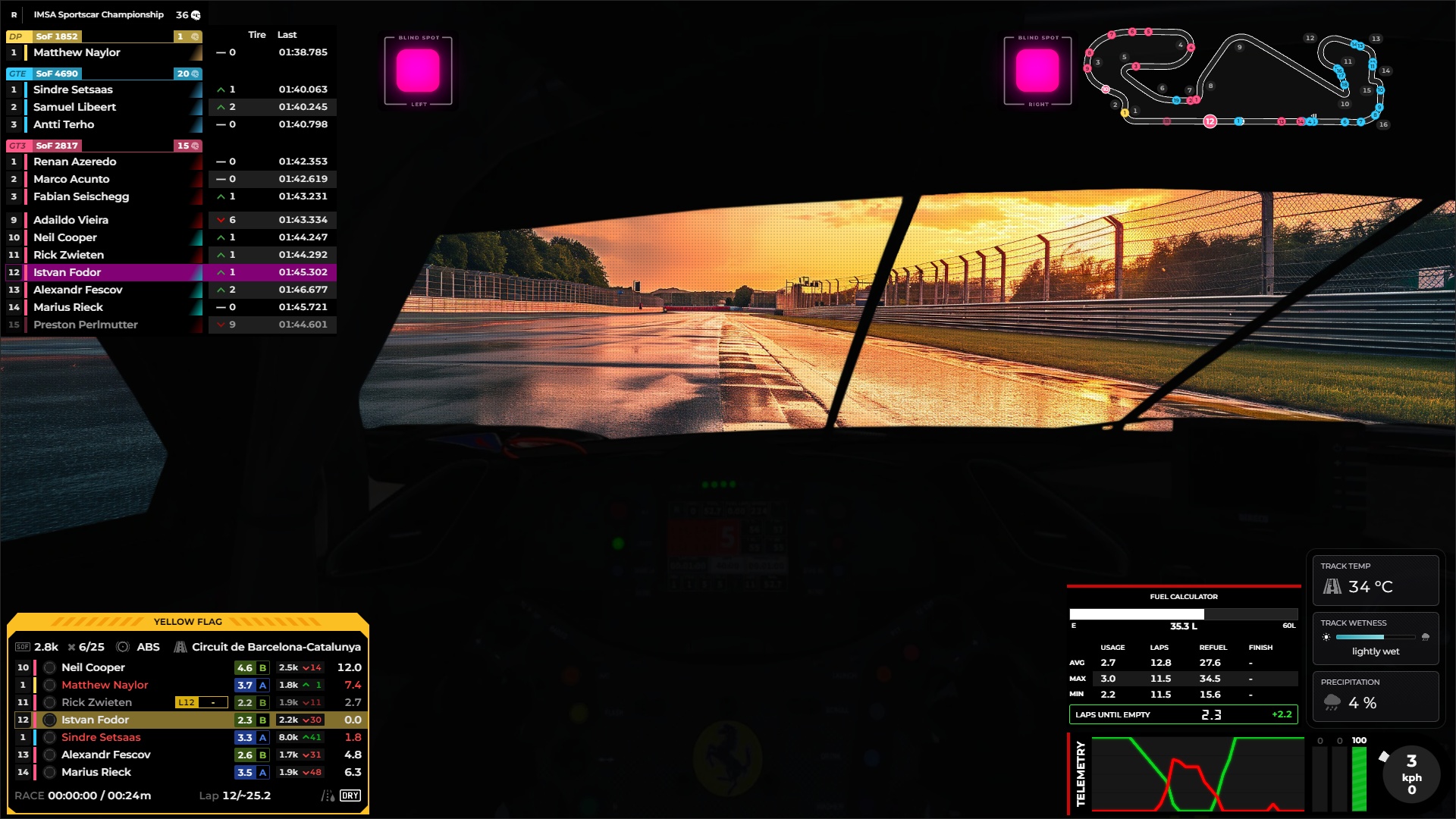
Because RaceLab runs in a browser, updates roll out automatically and you can manage layouts from any device. It is a strong choice for streamers who want a clean, ready-to-use overlay stack without the time investment of building one from scratch in SimHub.
Streamlabs and Custom Alert Overlays
While SimHub handles race data, Streamlabs manages the interactive elements of your stream. Follower alerts, subscription notifications, donation messages, and chat overlays all flow through Streamlabs or similar services like StreamElements. These alerts add energy to your broadcast and acknowledge viewer support in real time.
Integrating Streamlabs with your iRacing stream requires adding a Browser Source in OBS for each alert type. Position these alerts in areas that do not cover essential race information. Most streamers place follower alerts across the top of the screen or in the upper corners where they are visible but do not obstruct the racing view.
The key to alert overlays during sim racing is keeping them subtle. Loud, animated alerts that dominate the screen will distract you during critical racing moments. Choose alert designs that are visible but brief, and consider muting audio alerts during qualifying and race sessions. You can always acknowledge new followers verbally during caution periods or cool-down laps.
Custom HTML and CSS Overlays for Advanced Users
If you have web development skills or want a completely unique look, custom HTML overlays give you total control over your stream graphics. OBS Browser Sources can display any HTML page, which means you can build overlays from scratch using HTML, CSS, and JavaScript that pull data from iRacing’s telemetry API or SimHub’s web server.
Custom overlays let you match your stream’s branding perfectly. You control fonts, colors, animations, and layout with pixel-level precision. Several open-source projects on GitHub provide template code that you can modify rather than building from zero. These templates handle the data connection to iRacing and give you a framework for designing the visual presentation.
The investment in a custom overlay pays off if you stream regularly and want a distinctive visual identity. Viewers remember channels that look professional and unique, and a custom overlay package contributes significantly to that impression. However, maintaining custom overlays requires updating them when iRacing changes its telemetry output or when OBS updates break compatibility. Only pursue this route if you are comfortable with basic web development.
Free vs Paid Overlay Options
The free overlay ecosystem for iRacing is remarkably strong. SimHub itself is free, and the community overlay packs provide enough variety for most streamers to build a professional-looking broadcast without spending anything. If you are just starting out, free overlays are the clear recommendation because they let you experiment with different styles before committing to a specific look.
Paid overlay options exist for streamers who want premium designs or dedicated support. Some designers sell overlay packages through platforms like Etsy or their own websites, offering polished graphics with consistent design language across all elements. These packages typically include matching alert animations, scene transitions, and social media panels alongside the race data overlays.
The practical difference between free and paid overlays comes down to cohesion and customization. Free packs are often mix-and-match collections where different elements may not visually harmonize. Paid packages are designed as unified systems where every element shares the same style. For established streamers building a brand, that visual consistency has value. For casual streamers, free options work perfectly well.
Setting Up Your Overlay Stack: A Quick Recommendation
For a clean, effective iRacing stream overlay setup, start with SimHub and the benofficial2 overlay collection. Add the relative timing tower on the left side of your screen, the input trace in the bottom center, and the delta time display near the top. This combination gives viewers essential race information without cluttering the view.
Layer Streamlabs alerts on top for follower and subscriber notifications, positioned in the upper portion of the screen. If you use a webcam, create a small frame for it in the bottom corner using a custom image or one of the many free webcam border templates available online.
As you grow more comfortable with streaming, gradually add elements like fuel calculators for endurance events, championship standings for league races, and custom scene transitions. Building your overlay setup incrementally prevents overwhelm and lets you evaluate which elements your viewers actually appreciate. For more details on setting up OBS specifically for iRacing, check out our guide on how to stream iRacing on Twitch.