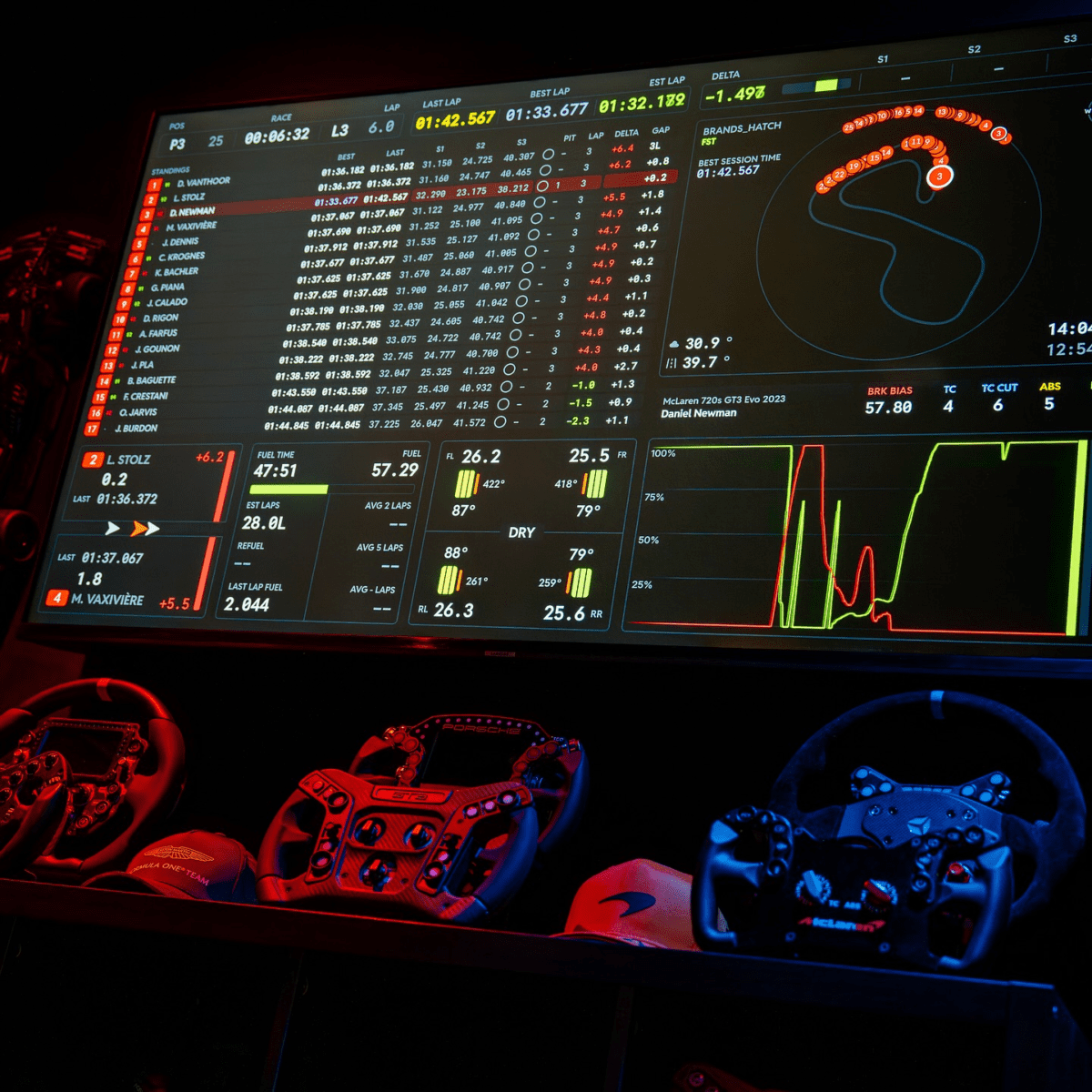
SimHub is the overlay and dashboard platform that most competitive iRacers rely on daily. It connects to iRacing’s telemetry, displays customizable on-screen overlays, and supports external devices like bass shakers and LED displays. Whether you want a simple fuel calculator floating over your sim or a full suite of data readouts, SimHub handles it all for free.
This guide covers the complete SimHub setup process for iRacing, from installation to your first dashboard. By the end, you will have overlays running on your screen and a clear understanding of how to customize them to fit your racing style.
What SimHub Does for iRacing
SimHub reads real-time telemetry data from iRacing and presents it through visual dashboards and overlays. These can float on top of your iRacing window, showing information like relative positions, fuel calculations, tire temperatures, lap deltas, and input traces. Think of it as a customizable instrument panel that supplements what iRacing shows you natively.
Beyond screen overlays, SimHub also drives external hardware. If you have bass shakers or a buttkicker, SimHub can send haptic feedback based on road surface, curb strikes, or wheel slip. If you have an external LED display or a second screen running a dashboard, SimHub powers that too. The software is incredibly versatile, but most iRacers start with screen overlays and expand from there.
How to Install SimHub
Visit the SimHub website and download the latest version. The installer is straightforward. Accept the license agreement, choose your install location, and let it finish. SimHub will ask during installation which sims you use. Select iRacing and any other sims you run. This step configures the correct telemetry plugins, but you can change it later in the settings.
After installation, launch SimHub. The main window shows several tabs: Dash Studio (where you build and manage dashboards), ShakeIt (haptic feedback), Arduino (hardware integration), and Settings. For your first setup, the only tab that matters is Dash Studio.
Connecting SimHub to iRacing
SimHub connects to iRacing automatically through the iRacing SDK. No additional plugins or configurations are needed on the iRacing side. However, there is one critical setting in iRacing that must be correct: your rendering mode.
SimHub overlays can only display when iRacing runs in windowed or borderless windowed mode. Full-screen exclusive mode blocks all overlays from appearing. To change this, open iRacing’s graphics settings and set the display mode to “Borderless” or “Windowed.” Borderless is the recommended option because it looks and performs almost identically to full-screen while allowing overlays to render on top of the sim.
Once iRacing is in borderless mode, launch SimHub before starting your iRacing session. SimHub detects the running sim automatically and begins receiving telemetry data. You will see a connection indicator in the SimHub window confirming it is reading data from iRacing.
Setting Up Your First Dashboard
SimHub comes with some built-in dashboards, but the real value is in community-created templates. The most popular collection for iRacing is benofficial2’s official overlay pack, available on the SimHub forums and GitHub. This pack includes a relative timing display, fuel calculator, input trace, and standings overlay. Download the pack, import it into SimHub through Dash Studio, and you have a professional overlay setup in minutes.
To import a dashboard, go to Dash Studio in SimHub, click “Import,” and select the downloaded file. The dashboard appears in your library. To make it an overlay that floats over iRacing, right-click the dashboard in your library and select “Add to overlay layout.” Position it on your screen where you want it to appear during racing, resize it, and lock it in place.
Most racers start with three overlays: a relative box showing the cars around them, a fuel calculator showing consumption and remaining laps, and an input trace showing throttle and brake inputs. This trio covers the most important information gaps that iRacing’s native HUD does not fully address.
Community Dashboards Worth Trying
The SimHub community has created thousands of dashboards for iRacing. Beyond benofficial2’s pack, several other collections stand out. The iRacing HUD pack on OverTake.gg provides a comprehensive set of panels including weather data, pit timing, and track maps. The mkstrike overlay collection offers a minimalist design that works well on smaller screens or when you want less visual clutter.
When choosing dashboards, consider readability at racing speed. A dashboard might look great in a screenshot but be impossible to read when you are doing 150 mph and trying to manage traffic. Simple, high-contrast designs with large fonts tend to work best. Test each dashboard during a practice session before bringing it into a race.
You can also build your own dashboards in Dash Studio. The editor is drag-and-drop and supports binding any iRacing telemetry channel to any visual element. If you have a specific data display in mind that no community dashboard provides, building your own is entirely possible without any coding knowledge.
Motion and Haptic Feedback with SimHub
SimHub’s ShakeIt module is the most popular way to add haptic feedback to a sim racing setup. If you have bass shakers attached to your rig or chair, SimHub can drive them using telemetry data from iRacing. You feel curb strikes, road texture changes, gear shifts, and wheel lock through physical vibration. This is not just an immersion feature. It provides useful tactile information that helps you feel the car’s behavior without looking at a screen or listening for audio cues.
Setting up ShakeIt involves configuring which telemetry channels trigger which output devices. SimHub provides preset profiles for common setups, and the community has shared tuned profiles for specific cars and tracks. If you are running bass shakers, SimHub should be your go-to software for managing them.
Why Use SimHub Alongside Crew Chief
SimHub and Crew Chief serve different purposes and work perfectly together. Crew Chief provides audio feedback: fuel updates, spotter calls, damage reports, and gap information through your headphones. SimHub provides visual feedback: on-screen overlays showing relative positions, input traces, and data readouts.
Running both lets you minimize screen clutter while maximizing the information available to you. Let Crew Chief handle the data that works better as audio (fuel warnings, car proximity, position changes) and let SimHub display the data that works better visually (relative timing, input traces, tire data). This combination is what most competitive iRacers run, and it covers nearly every information need you will have during a race.
Both applications are free, lightweight, and actively maintained. Together, they form the backbone of a competitive iRacing setup that costs nothing to run and takes minutes to configure. If you are only going to install two companion apps for iRacing, make them SimHub and Crew Chief.