Crew Chief is the single most useful free app you can add to your iRacing experience. It turns your PC into a race engineer, spotter, and strategist rolled into one. If you have ever finished a race wondering how much fuel you had left, or missed a car diving up the inside because the built-in spotter was a half-second too slow, Crew Chief solves both problems and dozens more.
This guide walks you through everything from your first download to advanced voice commands. By the end, you will have Crew Chief running, configured for iRacing, and working the way a real crew chief would on race day.
What Is Crew Chief?
Crew Chief V4 is a free, open-source race engineer application built by sim racers for sim racers. It reads live telemetry from iRacing (and several other sims) and delivers real-time audio feedback about everything happening on track. Think of it as an upgrade to the default iRacing spotter that also adds fuel strategy, tire monitoring, damage reports, and opponent tracking.
The app runs on Windows alongside iRacing. It pulls data directly from the iRacing SDK, so there is no performance hit and no complicated plugin chain to manage. Jim Britton, known in the community as Mr. Belowski, has maintained the project since its early days, and the community regularly contributes voice packs, bug fixes, and feature requests through the official forums.
How to Download and Install Crew Chief
Getting started takes about five minutes. Head to thecrewchief.org and grab the latest installer. The current version at time of writing is V4.19. Run the installer, accept the defaults, and let it finish. That is the entire install process.
Once installed, open Crew Chief before you launch iRacing. On first launch, you will see two important buttons near the top of the window: “Download sound pack” and “Download driver names.” Click both. The sound pack contains all the audio clips Crew Chief uses for callouts, and the driver names pack lets Crew Chief call your opponents by name during races. These downloads happen quickly and only need to run once, though you should update them every few weeks to pick up new drivers and audio improvements.
Configuring Crew Chief for iRacing
In the main Crew Chief window, find the “Game” dropdown and select iRacing. That is the only required configuration step for basic functionality. Crew Chief is self-contained for iRacing and does not need any additional software or SDK installations.
However, there are a few settings worth adjusting right away. Open the Properties screen (the wrench icon) and navigate to the “Spotter” section. Here you can adjust the spotter sensitivity, which controls how close a car needs to be before Crew Chief calls “car left” or “car right.” The default works well for road courses, but oval racers often prefer a slightly more sensitive setting since pack racing demands earlier awareness.
Next, check the “Fuel” section. Make sure “Enable fuel monitoring” is on. Crew Chief tracks your fuel consumption lap by lap and calculates whether you have enough to finish. During a race, it will proactively tell you when you need to pit and exactly how much fuel to add. This alone saves you from carrying a calculator or guessing during pit stops.
Key Features That Make Crew Chief Essential
Crew Chief does a lot. Here is a breakdown of the features that matter most for iRacing.
The Spotter
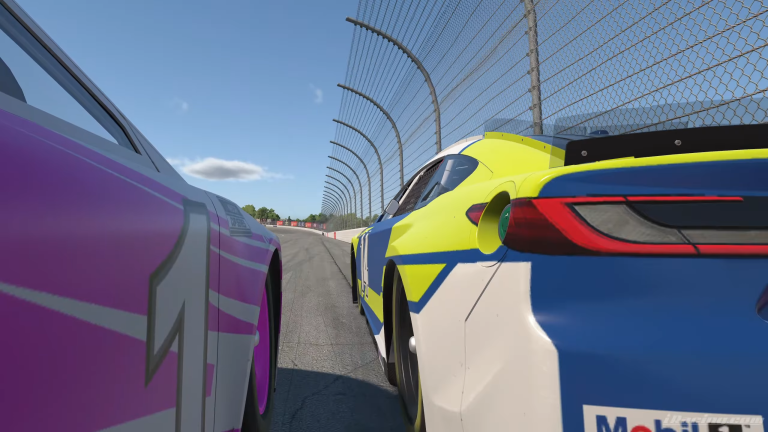
The Crew Chief spotter replaces iRacing’s built-in spotter entirely. It calls out cars on your left and right, warns you about cars overlapping into your blind spots, and provides “clear” calls when you have room to move. Many racers find the Crew Chief spotter more responsive and natural-sounding than the default. You can choose from several spotter voices, each with its own personality and phrasing style, so you can pick one that feels comfortable during long stints.
Fuel Calculator
The fuel system tracks your per-lap consumption in real time and adjusts its calculations as conditions change. If you start saving fuel mid-stint, Crew Chief updates its estimate. If you push harder and burn more, it recalculates. Before each pit stop, it tells you the exact amount of fuel you need to finish the race. For endurance events, this feature is worth its weight in gold.
Damage and Mechanical Reports
When you take contact or run over a curb too aggressively, Crew Chief reads the telemetry and tells you what is damaged. It will report aero damage, suspension issues, and engine problems as they happen. This helps you decide whether to pit early for repairs or nurse the car to the end of a stint. In multiclass races where track awareness is already maxed out, having an audio report about your car’s health lets you keep your eyes on the road instead of scanning the dashboard.
Opponent Tracking and Gap Reports
Crew Chief keeps track of the cars around you and reports gaps to the car ahead and behind. It will call out when a faster car is closing in, tell you when you are gaining on the car in front, and warn you if a lapped car is approaching. During caution periods, it reports your restart position and the order of cars nearby. Combined with the spotter, this gives you a complete picture of the race without needing to glance at timing screens.
Voice Commands
One of the most powerful features in Crew Chief is voice recognition. Enable it in the Properties screen under “Voice Recognition,” and you can talk to your crew chief mid-race. Ask questions like “how much fuel to the end” or “what position am I in” and get an instant audio reply. You can also ask about tire temps, the gap to specific competitors, and even request pit strategy recommendations.
Voice commands require a working microphone. Windows Speech Recognition handles the actual recognition, so you may want to run through the Windows speech training wizard once to improve accuracy. After that initial setup, most commands work reliably even with ambient noise from a wheel or open-back headphones.
Voice Packs and Customization
The default Crew Chief voice is Jim Britton himself, and it works great. But the community has created additional voice packs that change the personality of your engineer. Some are serious and professional, others are more relaxed and humorous. You can also find AI-generated voice packs on the Crew Chief forums and through community tools like the crew-chief-autovoicepack project on GitHub, which lets you generate custom voice packs using AI speech synthesis.
To install a voice pack, download it from the forums or the voice pack tool, then place the files in the Crew Chief sounds directory. Restart the app, and the new voice appears in the voice selection dropdown. Switching between voices takes a couple of clicks and does not require any reconfiguration.
Common Mistakes to Avoid
The most common mistake new users make is leaving iRacing’s built-in spotter enabled alongside Crew Chief’s spotter. This creates overlapping callouts that are confusing and sometimes contradictory. To fix this, go into iRacing’s audio settings and turn off the built-in spotter. Let Crew Chief handle all spotter duties.
Another frequent issue is running Crew Chief without updating the sound pack and driver names. If your sound pack is outdated, some callouts may be missing or use placeholder audio. Update both packs every couple of weeks, especially after a new iRacing build drops, and you will always have the latest audio.
Some users also forget to start Crew Chief before joining a session. While you can start it mid-session, it works best when it has access to the full session data from the beginning. Make it a habit to launch Crew Chief first, then fire up iRacing.
Finally, if voice commands are not working, check that Windows Speech Recognition is enabled and that your microphone input is set correctly in both Windows and Crew Chief’s properties. A quick run through the Windows speech training wizard usually resolves recognition issues.
Crew Chief Is Free, and That Matters
Crew Chief runs entirely on a donation model. There is no premium tier, no locked features, and no subscription. Everything described in this guide is available to every user from day one. If you find value in the app (and you will), consider supporting the project through the donation link on the Crew Chief website. Development is ongoing, and community support keeps the project alive.
For iRacing specifically, Crew Chief fills gaps that no other single tool covers as well. The combination of spotter, fuel strategy, damage reports, and voice commands in one free package makes it an essential part of any competitive iRacer’s toolkit. Whether you are running your first D-class race or grinding through a six-hour endurance event, Crew Chief makes the experience better.
Download it, set it up with the steps above, and you will wonder how you ever raced without it.