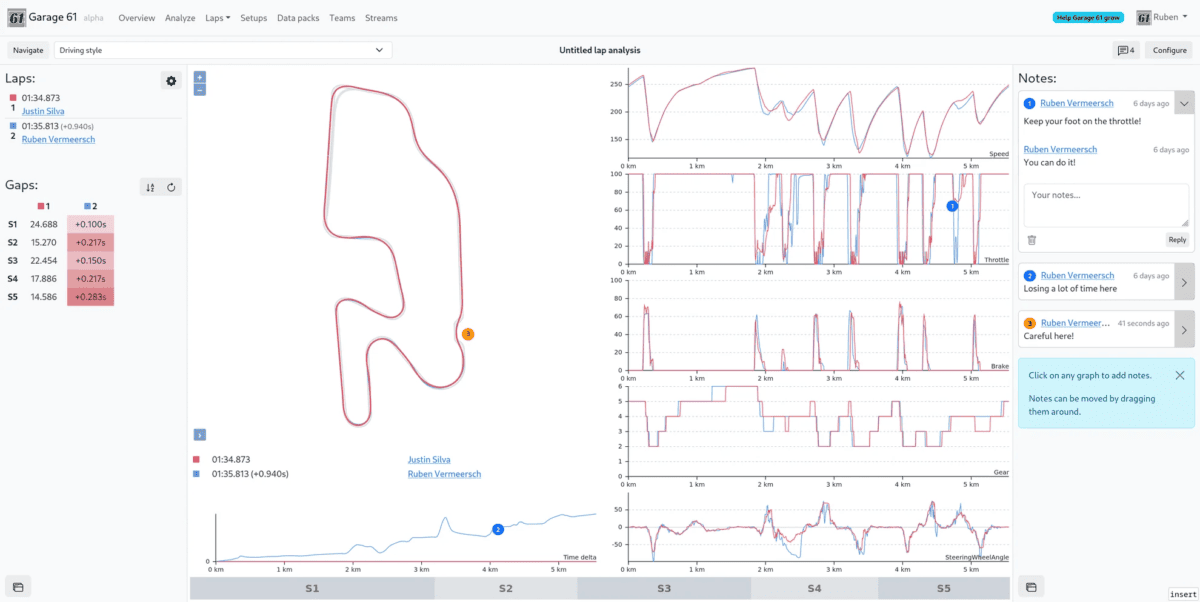
Garage 61 is one of the most widely used telemetry tools in iRacing. It runs as a lightweight background agent that captures your session data and feeds it to a browser interface where you can view throttle, brake, and steering traces, compare laps side by side, and pull lap data from other drivers in public sessions. The iRacing Telemetry Widget is a free Windows overlay that brings that Garage 61 data directly into the sim.
The problem is that the analysis lives in a browser tab. When you are in a practice session working on a specific corner, the reference data you want is somewhere behind a tab switch. You have to remember what you saw, drive the lap, and piece it together afterward.
The iRacing Telemetry Widget closes that gap. It is a free Windows overlay that pulls your Garage 61 lap exports directly into the sim. While you drive, it shows your real-time throttle and brake traces against a reference lap from Garage 61. You see the comparison as it is happening, not after the session ends.
How the Garage 61 Integration Works
Garage 61 lets you export any lap as a CSV file. That includes your own laps, a teammate lap, or a fast lap from a public session. The iRacing Telemetry Widget reads that CSV and uses it as a reference track for the current session.
Once you load the file, the overlay draws two trace sets in the input panel: dashed lines for the reference lap and solid lines for your current inputs. You can see whether you are braking later than the reference, whether your throttle pickup is early or late, and whether your ABS fires at a corner where the reference stays clean.
The comparison updates lap by lap. Your trace resets from the start of each new lap. This is not post-session review. It is in-lap feedback tied directly to the reference you chose before going out.
What the Overlay Shows
The overlay is modular. You can turn each panel on or off from the settings menu depending on what you want on screen. The available panels include a steering wheel with live angle and smooth animation, throttle and brake bars with percentage readouts, the lap comparison graph with dashed reference traces and solid live traces, gear and RPM with shift lights, current and best lap times, and brake bias, traction control level, and ABS level.
There is an ABS activation indicator worth calling out separately. When ABS fires, the brake bars and the overlay border pulse in real time. You can see exactly which corners you are triggering ABS, whether that matches what the reference lap does, and how frequently it activates across a stint. For drivers working on trail braking or brake pressure, this is the kind of feedback that is hard to get any other way without dedicated telemetry hardware.
There is also a pit limiter visual. When the pit limiter is active, the RPM widget blinks. It is a small touch, but it removes one mental item during the in-lap transition.
Setting It Up
There is no installation process. You download a single .exe file from the GitHub releases page and run it. The overlay connects automatically when you join an iRacing session. No configuration changes are needed inside iRacing itself.
To load a Garage 61 reference lap, go to your Garage 61 session and find the lap you want to use. Export that lap as a CSV file from the lap analysis view. In the overlay, click the gear icon in the top-left corner to open settings, click Load Reference Lap, and select the CSV file. The comparison traces appear in the input panel right away.
You toggle the comparison view on and off with Alt+C by default. The hotkey is fully customizable, and the overlay supports steering wheel button hotkeys as well. You can assign the comparison toggle to a wheel button so you do not have to reach for the keyboard mid-session.
Moving and resizing the overlay takes seconds. Drag from the top black bar to reposition it. Use the yellow handle in the bottom-right corner to resize. If you run a second monitor, you can move the overlay there entirely to keep your main display clear.
Track Markers
The track marker system is a feature that does not get much attention in overlay comparisons. While driving, you press a configurable hotkey to mark your current position on track. On future laps, the overlay plays an audio beep as you approach that position. The warning distance is adjustable between 1 and 100 meters.
The practical use is braking points. You mark the spot where you want to start braking, and the beep fires as you approach it. If you want to try a later braking point, you move the marker and run the experiment again. You can also mark a turn-in reference, an apex clip, or any position you want an audio cue for.
For example, if you are working on your brake point for a specific corner and want to compare three different markers across multiple laps, you move the marker, note what changed, and move it again. The beep keeps each attempt honest. You clear individual markers with one hotkey or all markers at once with another, which matters when you have some corners locked in and are still testing others.
Download and Requirements
The overlay runs on Windows 10 or Windows 11 and requires an active iRacing subscription. Minimum RAM is 4 GB, with 8 GB recommended. The download is around 100 MB. The overlay runs as a separate process from iRacing, so it does not add load to the sim.
The current release is v1.2.0, from January 7, 2026. The project is open source under the MIT license. You can download it from the GitHub releases page. Bugs and feature requests go through the issues tab on the same repository.
The Bottom Line
Garage 61 already does a solid job of showing you where your lap time is going. The iRacing Telemetry Widget takes that analysis and moves it into the session itself. If you are using Garage 61 for lap comparison but still relying on memory to apply what you saw, this overlay is a direct way to close that gap. It is free, it runs on any modern Windows PC, and setup takes about five minutes.