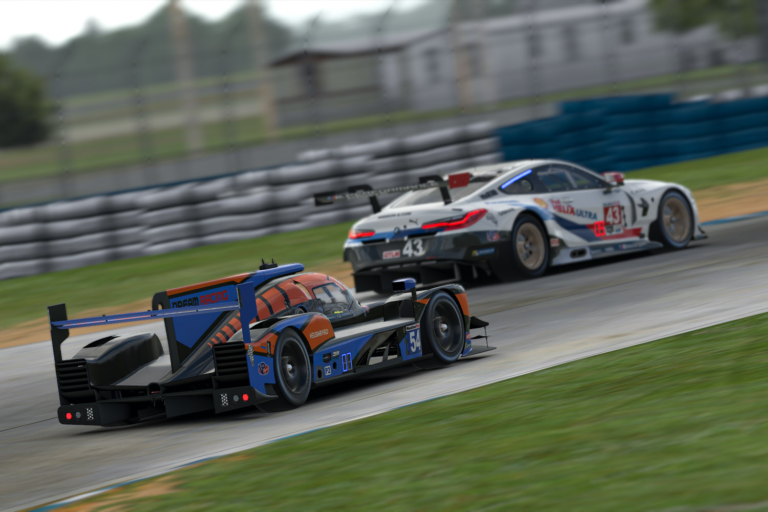
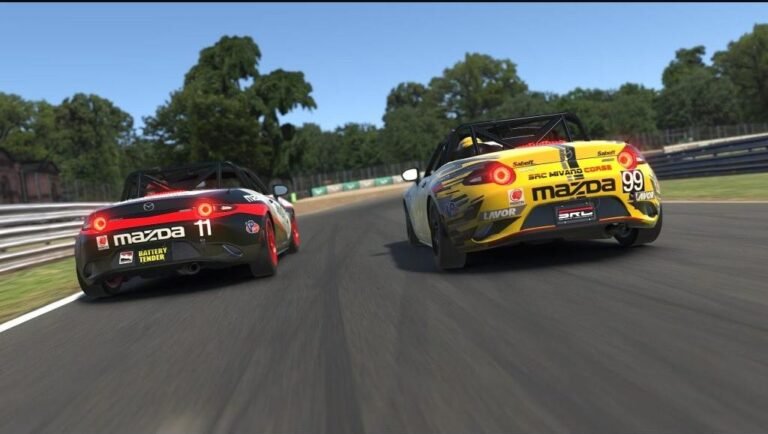
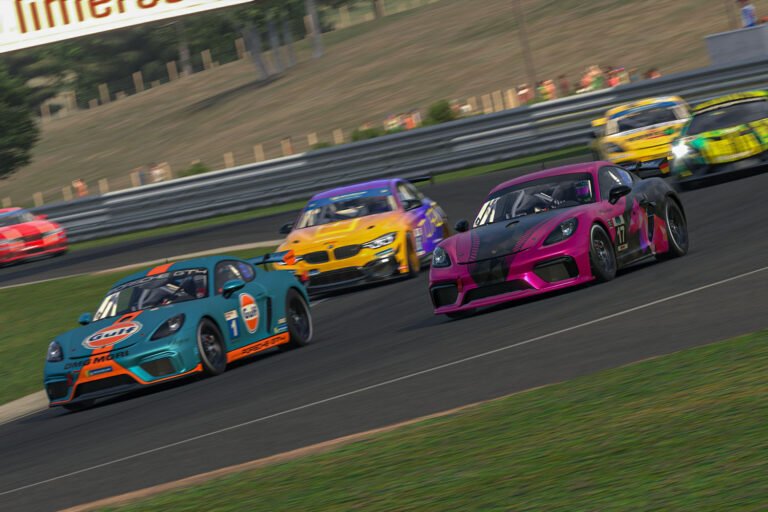
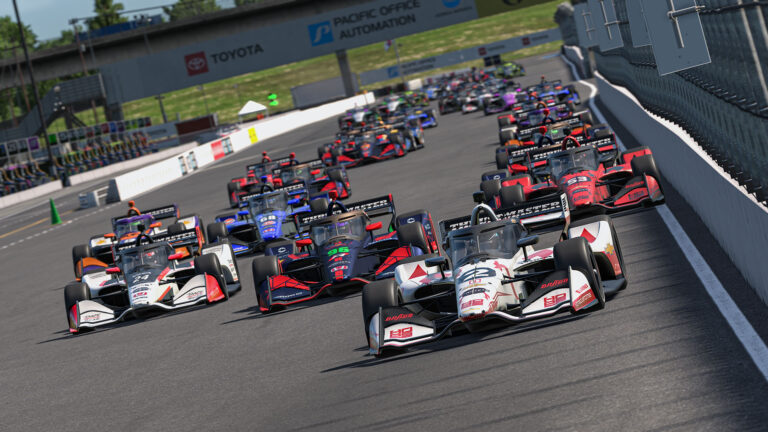
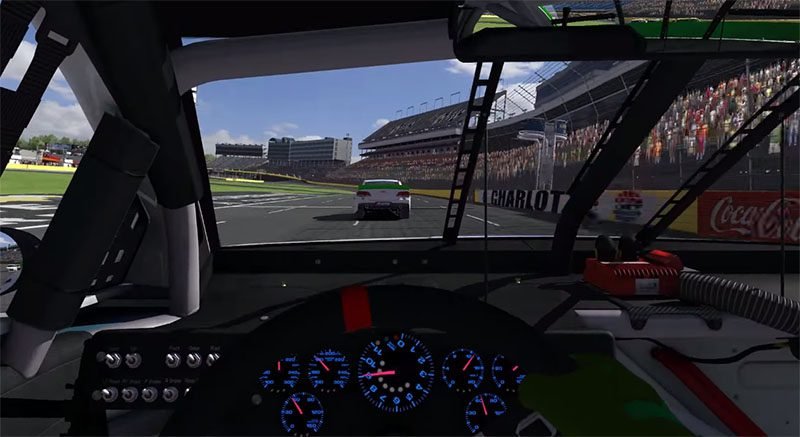
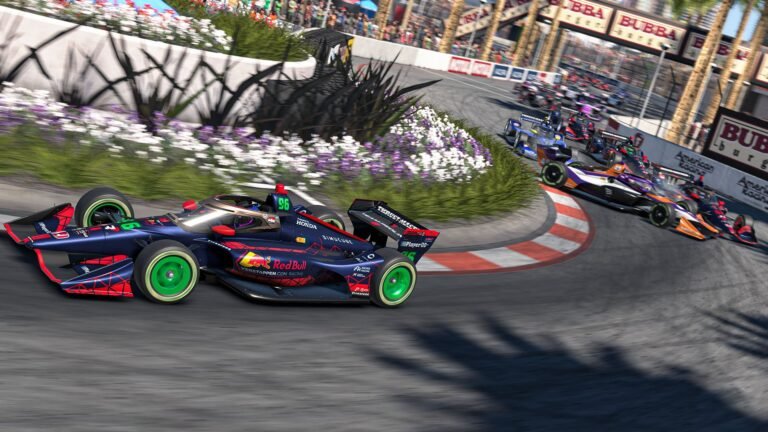
Trading Paints is one of the first apps every new iRacer should install. It takes the default paint schemes in iRacing and replaces them with custom liveries created by the community. Instead of a grid full of identical cars with different numbers, you see unique paint jobs on every machine. It changes the way iRacing looks and feels, and getting started takes about two minutes.
This guide covers everything you need to know about Trading Paints in iRacing: what it does, how to install it, how to find and apply liveries, and how to upload your own designs. Whether you want to run a team livery or just stop looking at plain white cars, this is the tool that makes it happen.
What Trading Paints Actually Does
Trading Paints is a companion application that syncs custom car liveries between iRacing drivers. When you join a session with Trading Paints running, the app downloads the paint schemes of every other driver in the session who also uses Trading Paints. At the same time, it uploads your paint scheme so others can see your car. The result is a fully customized grid where every driver looks different.
Without Trading Paints, you only see the liveries of drivers who have manually shared their TGA paint files through the iRacing forums or other channels. Trading Paints automates this entire process and makes it seamless. You install it once, and it works in every session going forward.
Free vs Pro: What You Get at Each Tier
The free version of Trading Paints covers everything most racers need. You can download and display custom liveries, upload your own car paints, and browse the full library of community-created designs. This is enough for the vast majority of iRacing drivers, and there is no pressure to upgrade.
Trading Paints Pro adds helmet customization, suit customization, and priority paint loading. The helmet and suit features let you personalize your driver’s appearance beyond just the car, which matters if you care about how you look in replays and broadcasts. Priority loading means your paint downloads slightly faster at session start. Pro costs a few dollars per month and is worth considering if you race in leagues or stream your races. For everyone else, the free tier is perfectly fine.
How to Install and Connect Trading Paints
Start by visiting tradingpaints.com and creating a free account. You will need to link your iRacing account during the signup process so Trading Paints knows which driver you are. This connection is secure and only shares your public iRacing profile information.
Next, download the Trading Paints desktop application. Install it and log in with the account you just created. The app runs in your system tray and activates automatically when iRacing launches. There is no manual configuration needed after the initial setup.
Once installed, join any iRacing session and you will immediately see custom liveries on the cars around you. The first session might take a few extra seconds at the loading screen as Trading Paints downloads paints for every driver, but subsequent sessions load faster because previously downloaded paints are cached locally.
Finding and Applying Liveries
The Trading Paints website hosts thousands of liveries for every car in iRacing. Browse by car type, search by team name, or filter by popularity to find designs that match your style. When you find a livery you like, click “Use on my car” and it becomes your active paint for that specific car. You can set different liveries for each car you own in iRacing.
The library is massive and growing constantly. You will find everything from realistic motorsport replicas to creative original designs. Sorted by “most popular” is a good starting point, as the highest-rated paints tend to have clean designs and accurate templates. Many real-world racing teams and esports organizations publish their official liveries on Trading Paints, so you can run the same paint scheme your favorite team uses in competition.
Applying a livery is instant. Select it on the website, and the next time Trading Paints syncs (which happens when you start iRacing), your car shows the new paint. There is no file management, no folder navigation, and no template editing required on your end.
Uploading Your Own Paint Scheme
If you want to race with a custom paint job, you can create and upload your own designs. iRacing provides PSD and TGA templates for every car. Download the template for your car from the iRacing website, open it in a graphics editor like Photoshop, GIMP, or Paint.net, and create your design on the provided layers.
When your design is finished, export it as a TGA file and upload it through the Trading Paints website under your account profile. Select the car it belongs to, give it a name, and save. Your custom paint will now appear on your car in every session, and every other Trading Paints user will see it too.
Creating paint schemes does require some graphics skill, but the iRacing community is helpful. Forums and Discord servers dedicated to iRacing painting offer tutorials, free resources, and feedback on designs. If you do not want to paint your own car, you can commission a custom livery from community painters who offer their services at reasonable prices.
How Trading Paints Works in Multiplayer
Trading Paints only displays custom liveries for drivers who are also running the application. If a driver in your session does not use Trading Paints, you will see their default iRacing paint scheme or a basic numbered car. In practice, the adoption rate is high enough that most sessions have the majority of drivers running custom paints.
The paint exchange happens during the session loading screen. Trading Paints checks which drivers are in the session, downloads any new or updated paints, and applies them before you hit the track. This process is automatic and requires no input from you once the app is installed and logged in.
One important note: Trading Paints does not affect performance. The paints are simple texture files that replace the default textures in iRacing’s rendering pipeline. There is no additional GPU load, no frame rate impact, and no increase in network traffic during racing. The only slight delay is during the initial loading screen when new paints are being downloaded.
Finding Quality Liveries
The Trading Paints library is unmoderated, which means quality varies widely. Some paints are professional-quality replicas, while others are hastily made with clashing colors and misaligned logos. To find the best designs, start with the “most popular” sort on the Trading Paints website. High download counts generally indicate well-made paints.
Another good approach is to search for specific racing series or teams you follow. Many real-world teams and sanctioning bodies publish official liveries on Trading Paints. These are always high quality and accurately represent the real car.
If you race in a league, check whether your league has a Trading Paints page. Most organized leagues require members to upload their team paints to Trading Paints, and many maintain curated galleries of approved liveries. This keeps the visual standard high and ensures every car on the grid looks professional during broadcast events.
Trading Paints is one of those tools that makes iRacing feel more alive. The default experience with identical cars gets old quickly, and custom liveries add personality and identity to every race. Install it, pick a paint you like, and enjoy the upgrade. It is free, fast, and makes every session look better.